Record it. Explain it.
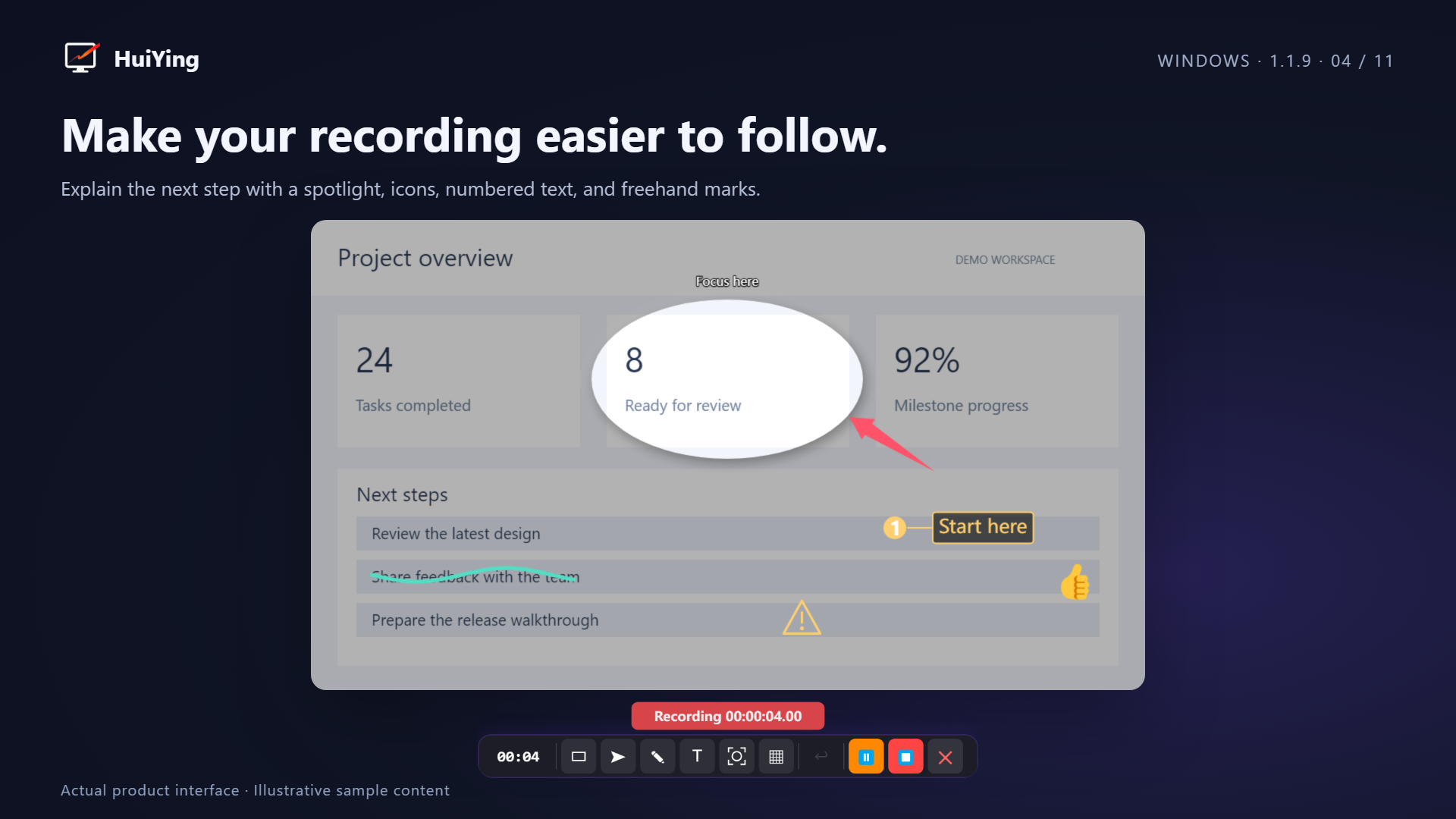
Add shapes, arrows, drawings, text, numbers, spotlights or mosaic during full-screen or region recording. Pause to prepare, then continue.
Annotate without freezing the screen; marks go straight into your video. Edit screenshots and scrolling captures, with local OCR and on-demand translation.
Move from QQ or WeChat screenshot explanations to tutorials and scrolling webpages. HuiYing connects capture, editing and live markup on Windows and Mac.
Add shapes, arrows, drawings, text, numbers, spotlights or mosaic during full-screen or region recording. Pause to prepare, then continue.
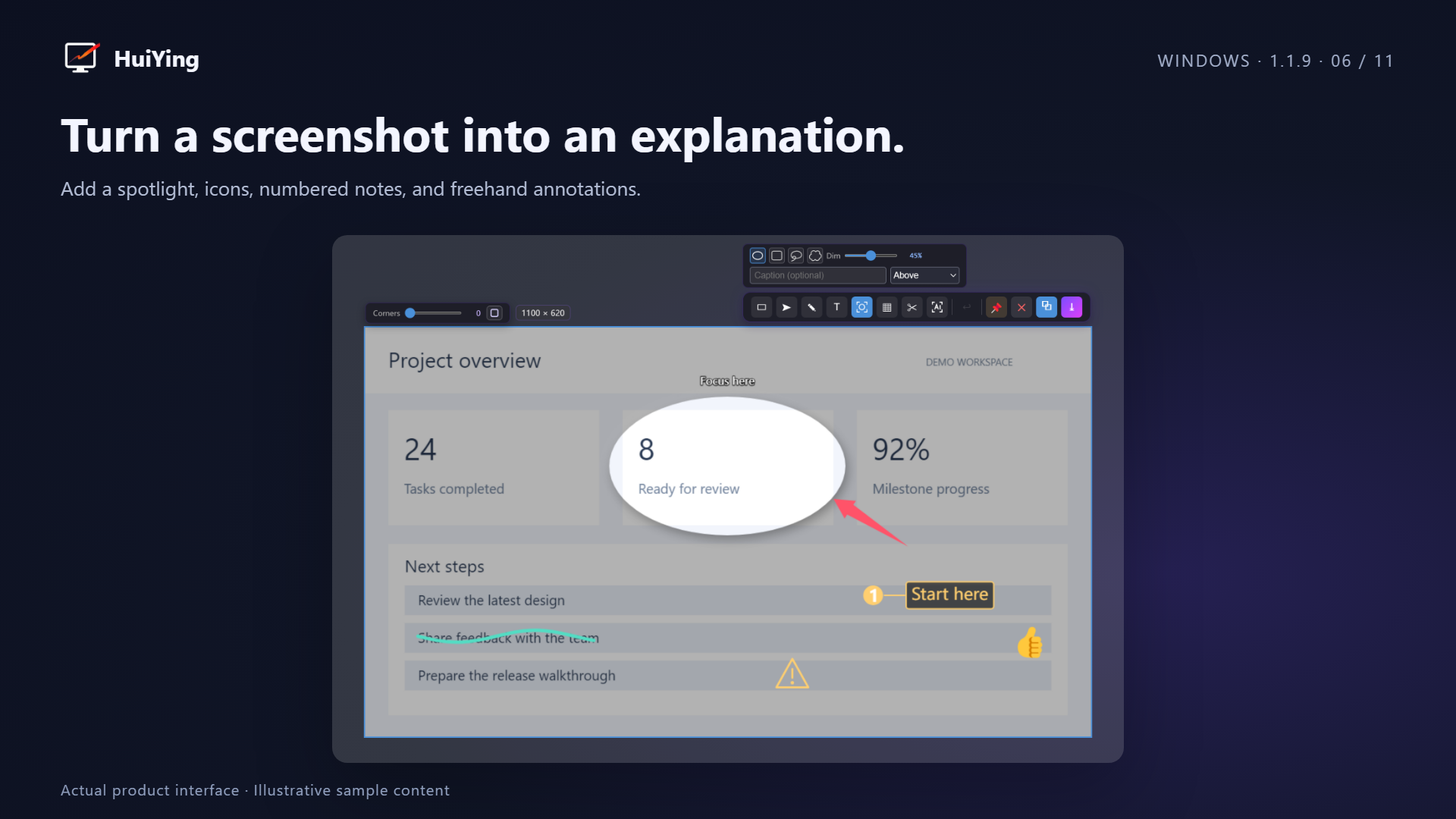
Edit regular, full-region or partial scrolling captures. Crop, annotate and recognize text, then save, copy or pin the image for reference.
Recording, screenshots, stitching and OCR run locally. Accounts, memberships, updates, feedback and translation use the network as needed. Requested translation sends text, not the original screenshot.
Choose the website EXE installer, portable 7z archive or Microsoft Store. Website editions keep their update workflow; Store editions are managed by the Store.
Two separate DMGs use Mac capture interfaces. Installation, permissions and drag-to-replace updates follow the macOS workflow.
See region recording, live markup, pause, preview and save in one walkthrough. This video uses the Windows interface; check the Mac client for its shortcuts and permissions.
See each stroke, text entry and icon selection. The video loads when you choose to play.
Open in a new tabA complete walkthrough: choose a region, explain, review, and save.
Check quality and audio on the main screen before selecting a region.
Press Alt + W, then drag to select the content you want to record.
Drag the edges or corners, then confirm the recording region.
Get ready. Capture begins after the countdown.
Use the toolbar, or press E to enter annotation mode.
Draw shapes, polygons, or symbols. Hold Ctrl to constrain supported shapes.
Choose a distinct arrow style and stroke for a clear direction.
Sketch curves, or choose highlighter, brush, and preset patterns.
Explain a detail with text, numbered steps, or an icon.
Choose a spotlight shape, dim the surroundings, and position its caption.
Select a rectangle to apply mosaic or blur to sample details.
Click a mark, or press Tab to cycle through the annotations.
Select a text annotation and press E. Changes apply immediately.
Use the move handle, hold the right mouse button and drag, or use arrow keys.
Ctrl + wheel resizes. Controls hide during movement and fade afterwards.
Ctrl + Z undoes; Del deletes. Esc or a right click exits annotation mode.
Pause while you prepare the next step, then resume recording.
Stop recording and wait for the video to be prepared.
Play and seek through the result to review your annotations.
Save the MP4 or copy the video for sharing.
HuiYing · Capture. Explain. Share.
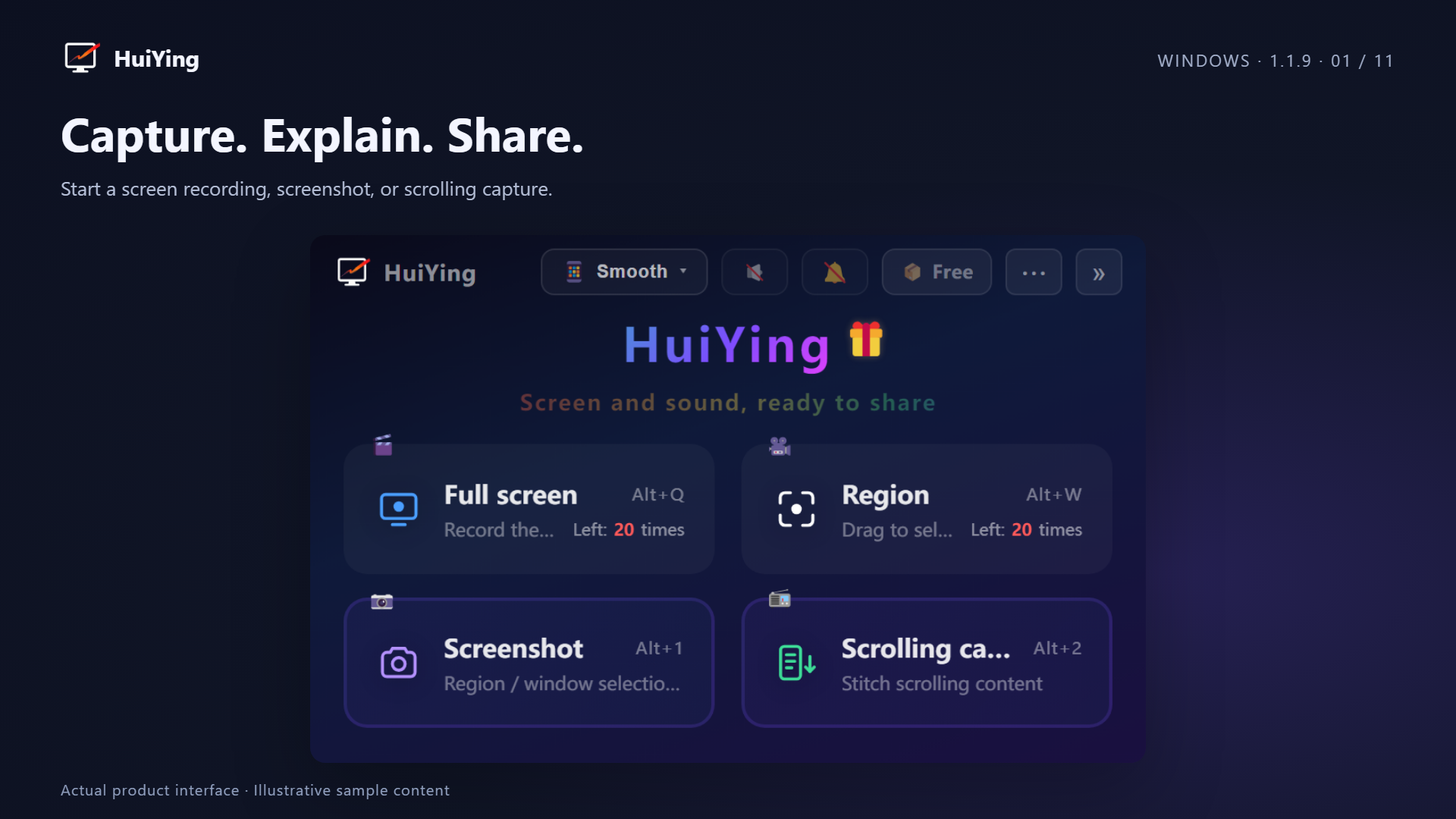
Capture, explain and export: screenshot annotation, scrolling capture and live recording markup.
Draw arrows, add text and number steps while recording. Marks are captured in the video, saving a separate annotation pass; preview before saving.
Collapse the main window into a mini floating toolbar for recording, screenshots and scrolling capture. Quality, audio and entitlement states stay in sync.
Capture full screens, custom regions or multiple displays combined into one video. Selection outlines and window snapping help you frame the right area.
Keep the underlying screen updating while you annotate changing pages, software actions or moving content. Marks enter the recording without first freezing it into a screenshot.
Choose solid, dashed, dotted or highlighter strokes for shapes, arrows and drawing. Use mosaic or blur for sensitive areas, matching the tool to the explanation.
Redact account details, avatars and chat information with rectangular or brush-based mosaic and blur. Check the covered area before sharing in QQ or WeChat; available in the free edition.
Rectangles, circles, lines and arrows. Hold Ctrl for squares and circles; hold Shift to constrain angles for precise annotations.
Numbered annotations increment automatically without gaps on cancel or failure. Add plain captions or colorful emoji, with adjustable size and background color—useful for steps and tutorials.
Smooth (up to 1080p/30fps), Clear (up to 1440p/30fps), and HD (native/60fps). Small regions are not enlarged. Free includes Smooth; PRO includes all three. Actual detail depends on content and hardware.
Record narration and system audio from games, meetings and videos. With PRO and the main window in the tray, a separate microphone picker opens. Free recordings are silent and include a 3-second branded outro.
Pause and resume while recording. Segments merge in timeline order. Stopping opens a video preview with play, save and copy controls.
For a problem shared in QQ or WeChat, select the screen area and explain it with arrows, text and numbered steps. Copy, save or pin the screenshot for reference.
For scrolling webpages or chat histories, choose whole-area or local scrolling and frame the moving content. Check the beginning, end and seams, then annotate, crop, save or recognize text in the long-screenshot editor.
Extract text from screenshots and scrolling captures. OCR runs locally, works offline and does not upload the image. Review and edit the result, then export rich text, PDF or Markdown.
Choose source and target languages. Screenshot translationText is sent only when you request translation; same-language text makes no request. Matching headings, paragraphs, lists, tables and styles are preserved where possible. Both source and translation remain editable.
Pin annotated screenshots in always-on-top windows. Drag to move and resize at the corners. Keep up to 15 images pinned at their original positions and sizes while recording or reviewing requirements.
Configure recording, screenshot and annotation shortcuts in Settings, including scrolling capture edit and pause/resume. See Help for all controls. Fine-tune a confirmed selection without starting over, and double-click a regular screenshot to copy it.
Check for updates automatically or manually. Windows website builds use their updater; the Store manages its edition. On Mac, download the matching DMG, quit the old app and drag to replace it.
Quality, default color, stroke width and audio preferences are saved locally. Closing minimizes to the tray. Visible, minimized and tray-hidden states are restored after recording.
Crop regular and scrolling screenshots into rectangles, circles or freeform shapes, preserving transparency in PNG. Full-resolution editing and undo help retain exactly what you need.
Add borders, rounded corners and shadows with adjustable width, color and style. Resize text, numbers and emoji by their corners for tutorials and demonstrations.
Submit suggestions or bugs in the app, attaching images or pasting screenshots with Ctrl+V. Track feedback, replies and rewards. Valid feedback may earn PRO days, subject to reward rules and review.
After interrupted recording or failed export, open Recovery from the menu, Settings or tray. Cards show recordings for preview, MP4 export or confirmed source cleanup, including unexported or unrecoverable entries. Missing or damaged sources may prevent recovery.
One-time purchase · No automatic renewal
Get the Windows or Mac capture tool: installer, portable archive or Store on Windows, and a chip-matched DMG on Mac. Quick downloads preserve package and architecture choices.
Windows 10 / 11 · 64-bit x64
Standard installation with shortcuts. Uninstall through system settings.
Get installer.exeNo installation. Extract with 7-Zip, Bandizip or a compatible tool.
Get portable.7zWebsite EXE and portable packages are unsigned. If SmartScreen blocks one, verify its official source, then see More info → Run anyway. Store versions follow the Store listing.
查看安装与权限说明 →macOS 13 or later · Two chip architectures
In Apple menu → About This Mac, choose Apple Silicon for an M-series chip or Intel for an Intel processor. Check manually if detection is uncertain.
Trusted source: HuiYing’s Windows Store edition has passed Microsoft Store certification, and Store-distributed packages are digitally signed by Microsoft. The Mac edition is a separate DMG; see “Mac installation and updates” below for its signing and first-launch details.
Open the DMG and drag HuiYing into Applications. Quit before replacing an older copy. The Mac app has basic code signing, without Apple notarization. If blocked, verify its official source, then use System Settings → Privacy & Security → Open Anyway.
Grant screen and system audio, microphone and Input Monitoring access for the features you use. OS version and permissions can affect capture.
查看安装与权限说明 →Direct website downloads · Free features need no account · See the purchase section for Free and PRO access
Find the steps, installation notes or answers you need.
For screenshot markup, scrolling capture, OCR, translation or recording questions, contact us by WeChat or email with your OS, app version and reproduction steps.

Share feature ideas or reproducible issues, such as missing QQ/WeChat windows, scrolling-capture seams, audio or export problems. Redact personal information in attachments.